BETA
BETAHow do I connect and transfer an existing broker account?
Recorded from the live app on 1 October 2026. A label may have changed since.
Transcript
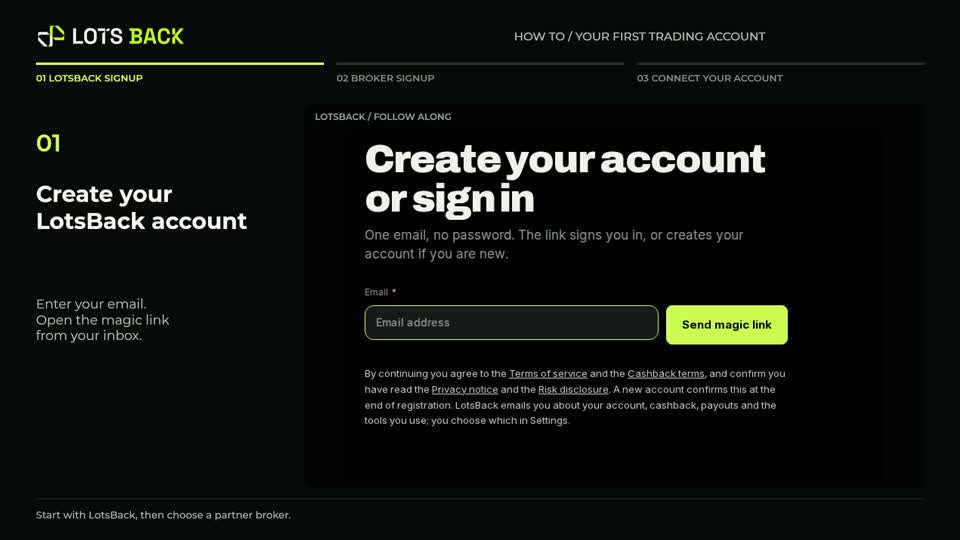
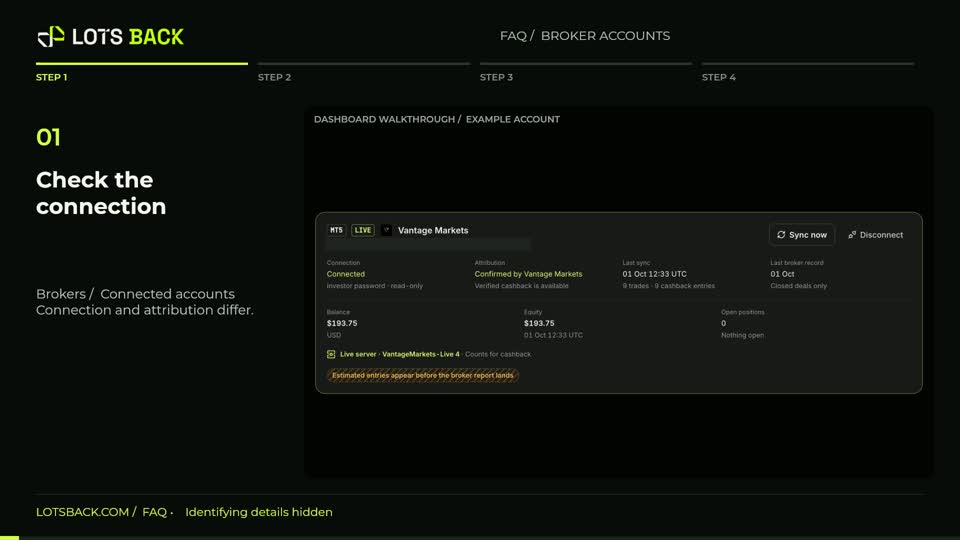
Already have a trading account, start by signing up to LotsBack with the magic link sent to your email. Choose your country. We're using Monaco in this example. On how do you want to start, select already have an account, connect it. Choose your broker and platform. Enter the exact server, trading login, and read only investor password, then select connect and start. Finish the remaining setup. Connecting lets LotsBack read your trades. To earn cashback, your broker must also confirm the account under LotsBack. If it isn't already linked, open move my existing account from the dashboard or brokers, and choose your broker. Copy the LotsBack IB number shown for that broker. Keep this tab open. Sign into your broker's web client portal. At Vantage, for example, open the three-dot menu, choose profile, then transfer IB, CPA, sales. Choose IB as the partnership type and paste the number copied from LotsBack. Follow the broker's requirements, including any requirement to have no open positions. Submit the request once. If there's no transfer page, use the support message in the LotsBack guide. Return to LotsBack and enter your broker registered name, email, and client ID or UID. This is your broker profile ID, not your trading account number. Review the consent and send your details. Track the request under brokers, transfers. Cashback starts only after broker approval and confirmation under LotsBack. Earlier trades don't qualify. If the request isn't approved, follow the reason shown or open a new account through the partner link. Your complete guide is at LotsBack.com slash guide slash transfer.
Taken from the captions.